Thursday, July 16, 2026
tshark
tshark -i "Wi-Fi" -B 8192 -q -b duration:3600 -b files:1440 --compress gzip -w d:\captures\out.pcapng "(host 8.8.8.8 and port 443) or (host 8.8.8.8 and port 53)"
tcpdump
tcpdump -i eth0 -s 0 -nn -B 8192 -G 3600 -W 1440 -w captures/out-%Y%m%d-%H%M%S.pcap "(host 8.8.8.8 and port 443) or (host 8.8.8.8 and port 53)"
Tuesday, May 12, 2026
Look here for specific version numbers: https://support.apple.com/en-us/109033#latest
Then follow these steps for Sonoma (14.8.7):
softwareupdate --fetch-full-installer --full-installer-version 14.8.7
hdiutil create -o /tmp/Sonoma -size 16000m -volname Sonoma -layout SPUD -fs HFS+J
hdiutil attach /tmp/Sonoma.dmg -mountpoint /Volumes/Sonoma
sudo /Applications/Install macOS Sonoma.app/Contents/Resources/createinstallmedia --volume /Volumes/Sonoma --nointeraction
hdiutil detach /Volumes/Install macOS Sonoma
hdiutil convert /tmp/Sonoma.dmg -format UDTO -o ~/Desktop/Sonoma.cdr
mv ~/Desktop/Sonoma.cdr ~/Desktop/Sonoma.iso
rm /tmp/Sonoma.dmg
Or for Monterey (12.7.6):
softwareupdate --fetch-full-installer --full-installer-version 12.7.6
hdiutil create -o /tmp/Monterey -size 16000m -volname Monterey -layout SPUD -fs HFS+J
hdiutil attach /tmp/Monterey.dmg -mountpoint /Volumes/Monterey
sudo /Applications/Install macOS Monterey.app/Contents/Resources/createinstallmedia --volume /Volumes/Monterey --nointeraction
hdiutil detach /Volumes/Install macOS Monterey
hdiutil convert /tmp/Monterey.dmg -format UDTO -o ~/Desktop/Monterey.cdr
mv ~/Desktop/Monterey.cdr ~/Desktop/Monterey.iso
rm /tmp/Monterey.dmg
Thursday, March 26, 2026
Back in the day it was possible to connect to a specific site on a specific ip, just by supplying the host header.
curl -v -H "Host: www.example.com" https://127.8.4.2
But with tls1.3 strict SNI checking, the host header isn’t enough.
It is, however, possible to override dns by using the –resolve override.
curl -v --resolve www.example.com:80:127.8.4.2 https://www.example.com
Wednesday, February 19, 2025
curl -v --proxy-negotiate -u : https://blog.mydomain.com --proxy http://proxy.lan.local:3128
Friday, January 31, 2025
#!/bin/bash


#NGINX
mkdir -p /volume1/unpacked/rar2fs
docker run --name nginx -v /volume1/unpacked/rar2fs:/usr/share/nginx/html:ro -p 5088:80 -d nginx:stable

# NGINX-PROXY-MANAGER
mkdir -p /volume1/docker/nginx-proxy-manager/data
mkdir -p /volume1/docker/nginx-proxy-manager/letsencrypt
docker run -d \
    --name=nginx-proxy-manager \
    -p 5080:80 \
    -p 5443:443 \
    -p 5081:81 \
    -v /volume1/docker/nginx-proxy-manager/data:/data:rw \
    -v /volume1/docker/nginx-proxy-manager/letsencrypt:/etc/letsencrypt:rw \
    jc21/nginx-proxy-manager:latest

#RAR2FS
docker stop nginx
docker stop nginx-proxy-manager
docker stop rar2fs
docker rm rar2fs

mount --make-shared /volume1/
docker run \
  -d \
  --init \
  --privileged \
  --name rar2fs \
  --cap-add MKNOD \
  --cap-add SYS_ADMIN \
  --device /dev/fuse \
  --network none \
  -v /volume1/stuff:/source \
  -v /volume1/unpacked/rar2fs:/destination:rshared \
  zimme/rar2fs

docker start nginx-proxy-manager
docker start nginx
Wednesday, January 22, 2025
There are some key combo’s like ctr-alt-end that might work in an RDP session. However, there are some scenario’s (e.g. with a Mac) that make it complicated.
Workaround:
C:\Windows\explorer.exe shell:::{2559a1f2-21d7-11d4-bdaf-00c04f60b9f0}
Thursday, August 22, 2024
"C:\Program Files\Google\Chrome\Application\chrome.exe" --ssl-key-log-file=%USERPROFILE%\Desktop\keylog.txt
Sunday, February 18, 2024
If you do not want rar2fs to modify your files when opening, make sure /source is ro
docker run \
  -d \
  --init \
  --name rar2fs \
  --cap-add MKNOD \
  --cap-add SYS_ADMIN \
  --device /dev/fuse \
  --network none \
  --security-opt apparmor:unconfined \
  -v /volume1/rarfiles:/source:ro \
  -v /volume1/unrarred:/destination:rshared \
  zimme/rar2fs
Tuesday, January 30, 2024
I want to use Certbot with Let’s Encrypt, but I don’t want my webserver to hand over the certificate to everyone knocking at my front door at poort 443.
Here’s how: I presume you have nginx and certbot installed.
Generate a self-singed certificate:
mkdir /etc/nginx/ssl/
sudo openssl req -x509 -nodes -days 365 -newkey rsa:2048 -keyout /etc/nginx/ssl/nginx.key -out /etc/nginx/ssl/nginx.crt
Now use this certificate for the default listener. Also respond with a http 444 (empty reponse).
server {
    server_name _;
    listen 80 default_server;
    listen 443 ssl default_server;
    # sudo openssl req -x509 -nodes -days 365 -newkey rsa:2048 -keyout /etc/nginx/ssl/nginx.key -out /etc/nginx/ssl/nginx.crt
    ssl_certificate /etc/nginx/ssl/nginx.crt;
    ssl_certificate_key /etc/nginx/ssl/nginx.key;
    return 444; # no reponse
}
After that, all you have to do is create a file in /etc/nginx/sites-enabled/ e.g. blog.mydomain.com
server {
    listen 443 ssl;
    server_name blog.mydomain.com;
    root /var/www/blog.mydomain.com;
    add_header Strict-Transport-Security "max-age=31536000; includeSubDomains" always;
}
Reload nginx.
Then run Certbot and follow the steps:
certbot --nginx --staple-ocsp -d blog.mydomain.com
Connecting with ssl without the proper host-header will now present the self-signed certificate and reponds with an empty reponse.
Wednesday, December 13, 2023
For some reason this pl2303 won’t even work on linux and thus requires Windows.
Even then, you need this fix anno 2023.
Monday, July 31, 2023
So I don’t forget:
FROM php:8.0.29-apache
# Update and install my default tools
RUN apt-get update
RUN apt dist-upgrade -y
RUN apt-get install -y nano curl wget openssh-client net-tools
# Enable RemoteIPHeader for Cloudflare Tunnels
RUN a2enmod remoteip
RUN sed -i 's/DocumentRoot \/var\/www\/html/DocumentRoot \/var\/www\/html\n\tRemoteIPHeader CF-Connecting-IP/g' /etc/apache2/sites-enabled/000-default.conf
# Set timezone
RUN ln -fs /usr/share/zoneinfo/Europe/Amsterdam /etc/localtime
RUN dpkg-reconfigure --frontend noninteractive tzdata
Monday, August 29, 2022
I never knew….
If you cannot continue in Chrome because of an ERR_CERT_INVALID error, even after pressing Advanced: there’s a secret passphrase built into the error page. Just make sure the page is selected (click anywhere on the background), and type `thisisunsafe`
Sunday, July 24, 2022
Personal reminder:
Download latest: https://ffmpeg.org/download.html
Run ffmpeg -i MyMovie.mkv and look for stream info, e.g.:
Stream #0:0: Video: h264 (High), yuv420p(tv, bt709/unknown/unknown, progressive), 1920x800, SAR 1:1 DAR 12:5, 23.98 fps, 23.98 tbr, 1k tbn, 47.95 tbc (default)
Stream #0:1(dut): Audio: ac3, 48000 Hz, 5.1(side), fltp, 448 kb/s
      title           : Dutch
Stream #0:2(dut): Audio: ac3, 48000 Hz, 5.1(side), fltp, 448 kb/s
      title           : Flemish
Stream #0:3(eng): Audio: ac3, 48000 Hz, 5.1(side), fltp, 448 kb/s
      title           : English
Stream #0:4(dut): Subtitle: subrip (default) (forced)
Stream #0:5(dut): Subtitle: subrip
Stream #0:6(eng): Subtitle: subrip
Say, I would like to have the video with the Flemish audio and all the subtitles (since they don’t take that much space)
ffmpeg -i MyMovie_2160p.mkv -vf scale=640:-2 -ac 2 -af "pan=stereo|FL=FC+0.30*FL+0.30*BL|FR=FC+0.30*FR+0.30*BR" -map 0:v:0 -map 0:a:1 -map 0:s MyMovie_640p_2ch.mkv
-vf scale=640:-2	= video filter: 640p, -2 means keep aspect ratio for vertical pixels
-ac 2			= (convert to) 2 audio channels
-af "pan=......		= audio filter: copy multichannel audio without losing center channel (dialogs)
-map 0:v:0		= copy first (0) video stream
-map 0:a:1		= copy second (1) audio stream (Start from 0. So 0 would be Dutch, 1 Flemish, 2 English)
-map 0:s		= copy all subtitles
but if you have non-convertible subtitles (bitmapped), then first map the desired sub and copy, e.g.: -map 0:s:3 -c:s copy
Monday, July 11, 2022
Because i didn’t make a backup. For next time’s reference:
connection: &p1usb
  accepter: tcp,10001
  enable: on
  connector: serialdev,/dev/ttyUSB0,local,115200n81
Older ser2net, shipped with debian buster with ‘just’ a .conf file is easy:
10001:telnet:600:/dev/ttyUSB0:115200 8DATABITS NONE 1STOPBIT banner
Thursday, July 7, 2022
pfSense’s DNS resolver has the ability to do host overrides from the gui, but these are global overrides.
Unbound (the underlaying DNS resolver) has the ability to create DNS views to do different things based on source addresses.
It is located under Services - DNS Resolver - General - Custom options. It is a free format field.
Example:
server:
access-control-view: 10.123.12.0/24 vlan15activedirectory
access-control-view: 10.158.1.0/24 vlan16guest

view:
name: "vlan15activedirectory"
local-zone: "vpn.client.net" static
# adding the host as a zone results in NXDomain lookup

view:
name: "vlan16guest"
local-data: "vpn.client.net. 90 IN A 11.12.13.10"
# adding a specific host and map it to a specific ip
More info: https://unbound.docs … ring/tags-views.html
Friday, March 18, 2022
Executable is powershell.exe. Arguments:
-command "& { . "c:\location\to\script.ps1"; my_function_name }"
Powershell can be painfully slow when dealing with larger arrays, reading files and listing large directories. Here are some workarounds.
Arrays
Slow:
$myarray = @()
foreach ($x in $y) {
  $myarray += $x
}
Much faster is working with an arraylist:
$myarray = [System.Collections.ArrayList]@()
foreach ($x in $y) {
  $null = $procarray.Add($x)
}
Reading files
Slow:
get-content $filename
Fast:
([System.IO.File]::ReadAllLines($filename))
Listing large directories
Slow:
$items = get-item "\\server\share\*.csv" | sort LastWriteTime
The fastest workaround i’ve been able to find is actually using a dos prompt. Use dir switches for sorting purposes.
Note: dir returns just text, while get-items returns objects with all sorts of properties. It depends on your use case whether this hack is actually usable or not.
$items = cmd /r dir "\\server\share\*.csv" /OD /B
Tuesday, October 5, 2021
When Windows 11 complains about your system not being compliant:
- press shift+F10
- regedit
- Navigate to HKEY_LOCAL_MACHINE\SYSTEM\Setup
- new key: LabConfig
- new dword value: BypassTPMCheck = 1
- new dword vlaue: BypassSecureBootCheck = 1
Go back and resume the installation again.
Thursday, February 18, 2021
Check your CPU here. Mine are Intel Xeon E5-2600 “version 0” series.
Download the HPE customized image
Does it work?
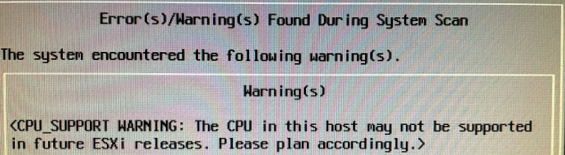
YES IT DOES.
According to the warning, the future is uncertain. But right now, 7.0 U1 is just fine!
Wednesday, February 10, 2021
Authorize for teams.
Replace YOUR_TENANT_ID, YOUR_EMAIL and YOUR_PASSWORD.
Use one of these client_id’s, depending on your usecase.
1fec8e78-bce4-4aaf-ab1b-5451cc387264 (Teams mobile/desktop application)
5e3ce6c0-2b1f-4285-8d4b-75ee78787346 (Teams web application)
auth.sh:
#!/bin/bash

curl -s -X POST https://login.microsoftonline.com/YOUR_TENANT_ID/oauth2/token \
-c cookies.txt \
-o auth.blob \
-F grant_type=password \
-F resource=https://teams.microsoft.com/ \
-F client_id=1fec8e78-bce4-4aaf-ab1b-5451cc387264 \
-F username=YOUR_EMAIL \
-F password=YOUR_PASSWORD
This will save your bearer token, amongst others, to auth.blob in a json object.
Because the bearer token is only valid for a certain period of time, you’ll need to refresh it. Here’s how. You’ll need ‘jq’ installed to decompose the json object.
refresh.sh:
#!/bin/bash

REFRESHTOKEN=`cat auth.blob | jq ".refresh_token" | sed 's/"//g'`

curl -s -X POST https://login.microsoftonline.com/YOUR_TENANT_ID/oauth2/token \
-c cookies.txt \
-o auth.blob \
-F grant_type=refresh_token \
-F resource=https://teams.microsoft.com/ \
-F client_id=1fec8e78-bce4-4aaf-ab1b-5451cc387264 \
-F refresh_token=$REFRESHTOKEN
In the script you can keep repeating actions, but in order to keep your token active, you can use the following piece of code:
if [ -f "auth.blob" ]; then
  EXPIRES=`cat auth.blob | jq ".expires_on" | sed 's/"//g'`
  NOW=`date +%s`
  TTL=`expr $EXPIRES - $NOW`
  if [ $TTL -lt 60 ]; then
    echo "time for a refresh!"
    ./refresh.sh
  fi
else
  echo "no previous auth present!"
  ./auth.sh
  EXPIRES=`cat auth.blob | jq ".expires_on" | sed 's/"//g'`
  NOW=`date +%s`
  TTL=`expr $EXPIRES - $NOW`
fi
Now you can do the cool stuff like query your calendar or whatever:
#!/bin/bash

BEARER=`cat auth.blob | jq ".access_token" | sed 's/"//g'`
curl -s --write-out "%{http_code}|%{time_total}n" -o bla.txt "https://teams.microsoft.com/api/mt/emea/beta/me/calendarEvents?StartDate=2021-02-07T23:00:00.000Z&EndDate=2021-02-14T23:00:00.000Z" \
-H "User-Agent: Mozilla/5.0 (Windows NT 10.0; Win64; x64) AppleWebKit/537.36 (KHTML, like Gecko) Teams/1.3.00.30866 Chrome/80.0.3987.165 Electron/8.5.1 Safari/537.36" \
-H "authorization: Bearer $BEARER"
Or verify your local timezone:
#!/bin/bash

BEARER=`cat auth.blob | jq ".access_token" | sed 's/"//g'`

date "+%Y.%m.%e %T %N"
curl -v 'https://teams.microsoft.com/api/mt/part/emea-03/beta/me/calendarEvents/timeZoneSettingsWithOffset?timezone=Europe%2FAmsterdam' \
-H "authorization: Bearer $BEARER" \
-H 'authority: teams.microsoft.com'
echo ""
date "+%Y.%m.%e %T %N"
Sunday, December 6, 2020
Since my work laptop is too restricted, i’m trying to set up Ubuntu on a USB stick and boot from there.
Actually, it has proven to be a very smooth experience so far. I’m impressed by the overall speed and battery performance.
Couple of things i must not forget.
WORK IN PROGRESS
Get some essentials:
sudo apt install curl ffmpeg keepassxc
Latest Google Chrome Browser: link
Latest Citrix Workspace (Receiver): link
Latest Citrix RTME (HDX for Skype): link
After installing the ica client:
sudo ln -s /usr/share/ca-certificates/mozilla/* /opt/Citrix/ICAClient/keystore/cacerts
cd /opt/Citrix/ICAClient/keystore/cacerts
sudo wget https://www.quovadisglobal.com/wp-content/files/media/quovadis_quovadisrootca2.pem
sudo /opt/Citrix/ICAClient/util/ctx_rehash

(for sectigo, go to https://support.sectigo.com/articles/Knowledge/Sectigo-Intermediate-Certificates, download the RSA OV bundle and do the same)
modify /opt/Citrix/ICAClient/config/wfclient.template before making the first connection (“~/Library/Application Support/Citrix Receiver/Config” on MacOS by the way)
MSLocaleNumber=0x00000413
KeyboardLayout=US-International
Also: modify /opt/Citrix/ICAClient/config/All_Regions.ini
MouseSendsControlV=False
If you use wayland and experience problems with special key-combo’s like alt-tab:
gsettings set org.gnome.mutter.wayland xwayland-grab-access-rules "['Wfica']"
gsettings set org.gnome.mutter.wayland xwayland-allow-grabs true
For other apps: if you don’t know which value to use: xprop WM_CLASS
Lastly:
sudo apt-get install --reinstall libcanberra-gtk-module
/opt/Citrix/ICAClient/util/configmgr (for mapping local drives)
Install Microsoft Teams:
sudo curl https://packages.microsoft.com/keys/microsoft.asc | sudo apt-key add -
sudo echo "deb [arch=amd64] https://packages.microsoft.com/repos/ms-teams stable main" > /etc/apt/sources.list.d/teams.list
apt update
apt install teams
Connecting to exchange web services (for calendar sync)
sudo apt install evolution-ews
Google drive support e.g. for keepass
sudo add-apt-repository ppa:alessandro-strada/ppa
sudo apt-get update
sudo apt-get install google-drive-ocamlfuse

edit ~/.gdfuse/default/config and set mv_keep_target=true

mkdir ~/Documents/GoogleDrive
google-drive-ocamlfuse ~/Documents/GoogleDrive
startup file for google drive mount and offline backup of keepass databases:
#!/bin/bash

google-drive-ocamlfuse ~/Documents/GoogleDrive
if [ ! -d ~/BACKUP/keepass/ ]; then mkdir -p ~/BACKUP/keepass/; fi
if [ -d ~/Documents/GoogleDrive/keepass/ ]; then cp -f ~/Documents/GoogleDrive/keepass/*.kdbx ~/BACKUP/keepass/; else echo Offline; fi
gedit json formatter:
Preferences - Plugins - enable External Tools
preferences - Manage external Tools
“+”, give name e.g. “Format Json”, shortcut key Ctrl+Alt+J, input=Current Document, output=Replace current document
code:
#! /usr/bin/env python

import json
import sys

j = json.load(sys.stdin)
print( json.dumps(j, sort_keys=True, indent=2) )
Kodi:
sudo apt-get install software-properties-common
sudo add-apt-repository ppa:team-xbmc/ppa
sudo apt-get update
sudo apt-get install kodi
Youtube-dl:
sudo curl -L https://yt-dl.org/downloads/latest/youtube-dl -o /usr/local/bin/youtube-dl
sudo chmod a+rx /usr/local/bin/youtube-dl
sudo ln -s /usr/bin/python3 /usr/local/bin/python
Wednesday, June 24, 2020
Example how to allow certain known connections (e.g. unifi accesspoints) and log unknown connection attempts.
This is done by adding a chain called LOGDROP, append packets that match the criteria (tcp/8080) to that chain, log the packets and drop them.
iptables:
#!/bin/bash

AP01="192.168.0.1"
AP02="192.168.0.2"
AP03="192.168.0.3"

# Resetting ...
iptables -P INPUT ACCEPT
iptables -P FORWARD ACCEPT
iptables -P OUTPUT ACCEPT
iptables -F
iptables -X

# Setting default policy on incoming traffic
iptables -P INPUT DROP                                                  # DENY INCOMING CONNECTIONS
iptables -P FORWARD DROP                                                # THIS IS NOT A ROUTER

# allowed accesspoints
iptables -A INPUT -p tcp --dport 8080 -s $AP01 -j ACCEPT                # UNIFI - AP01
iptables -A INPUT -p udp --dport 3478 -s $AP01 -j ACCEPT
iptables -A INPUT -p tcp --dport 8080 -s $AP02 -j ACCEPT                # UNIFI - AP02
iptables -A INPUT -p udp --dport 3478 -s $AP02 -j ACCEPT
iptables -A INPUT -p tcp --dport 8080 -s $AP03 -j ACCEPT                # UNIFI - AP03
iptables -A INPUT -p udp --dport 3478 -s $AP03 -j ACCEPT
# log AP connections that aren't allowed
iptables -N LOGDROP
iptables -A INPUT -p tcp --dport 8080 -j LOGDROP
iptables -A LOGDROP -j LOG --log-prefix "IPTables-Dropped: " --log-level 7
iptables -A LOGDROP -j DROP

# Make persistent
iptables-save >/etc/iptables/rules.v4
Create a file in /etc/rsyslog.d/ called “30-unifi-accesspoints.conf” with the following content:
:msg,contains,"IPTables-Dropped: " /var/log/unifi_accesspoints.log
and restart rsyslog
Wednesday, May 13, 2020
Mediainfo is a very nice utility, but it works even better with rar support.
Took me a while to compile it succesfully, therefor here are the steps. Easy once you know it :~
First, install current version of the normal Mediainfo and other requirements that we need later.
sudo -s
apt install mediainfo libmediainfo-dev git build-essential
Then get the latest source code from the mediaarea.net website. Currently version 20.03.
mkdir /root/installers/ && cd /root/installers
wget https://mediaarea.net/download/binary/mediainfo/20.03/MediaInfo_CLI_20.03_GNU_FromSource.tar.gz
tar zxvf MediaInfo_CLI_20.03_GNU_FromSource.tar.gz
cd MediaInfo_CLI_GNU_FromSource
./CLI_Compile.sh
cd MediaInfo/Project/GNU/CLI && make install
Now we’re going to add the rar functionality. It depends on a modified version of libdvdread, also from lundman, that we need first.
cd /root/installers
wget http://lundman.net/ftp/dvdread/libdvdread-4.2.0.plus.tar.gz
tar zxvf libdvdread-4.2.0.plus.tar.gz
cd libdvdread-4.2.0.plus
./configure && make && make install
And now we’re going to build the mediainfo-rar version:
cd /root/installers
wget "http://www.lundman.net/ftp/mediainfo-rar/mediainfo-rar-1.4.0.tar.gz"
tar zxvf mediainfo-rar-1.4.0.tar.gz
cd mediainfo-rar-1.4.0
./configure && make && make install
Run it: mediainfo-rar.
If it complains about “error while loading shared libraries: libdvdread.so.4”, fix it with:
ln -s /usr/local/lib/libdvdread.so.4 /lib/x86_64-linux-gnu/libdvdread.so.4
That’s all.
Backup links in case sources will ever disappear:
MediaInfo_CLI_20.03_GNU_FromSource.tar.gz
libdvdread-4.2.0.plus.tar.gz
mediainfo-rar-1.4.0.tar.gz
Monday, May 11, 2020
Somehow systemd does not run in the debian-chroot, so in case inetd is working for you, here’s how:
ssh to your synology
sudo -s
chroot /volume1/@appstore/debian-chroot/var/chroottarget /bin/bash
apt install wget tcpd zip unzip openssl lftp openbsd-inetd
Install software of choice. Then:
service openbsd-inetd start
exit
Auto-start the inetd service with the debian-chroot:
sqlite3 /volume1/@appstore/debian-chroot/var/debian-chroot.db
INSERT INTO services VALUES ('0', 'INETD', '/etc/init.d/openbsd-inetd','ps -p $(cat /var/run/inetd.pid)');
.quit
1 Install the synology “noarch” package
Go to the Package Center, then Settings
Trusted sources, “Synology Inc. and trusted publishers”
Package Sources, Add, “SynoCommunity” + “http://packages.synocommunity.com/”
Community, install Python (v2.x, not v3) and nano
Manual Install, debian-chroot_noarch-all_8.4-7.spk but DO NOT “Run after installation”
2 Fix the DSM Interface
Ssh to your Synology
sudo -s
cd /volume1/@appstore/debian-chroot/env/bin
./pip install click
nano /var/packages/debian-chroot/target/app/debian-chroot.js
Then replace
"url": "3rdparty/debian-chroot/debian-chroot.cgi/direct/router",
with
"url": "/webman/3rdparty/debian-chroot/debian-chroot.cgi/direct/router",
and:
'url': '3rdparty/debian-chroot/debian-chroot.cgi/direct/poller',
with
'url': '/webman/3rdparty/debian-chroot/debian-chroot.cgi/direct/poller',
And alter the onclose function:
onClose: function () {
    this.doClose();
    this.mainPanel.onDeactivate();
    return true;
},
3 Replace the binaries with x64
Remove old binaries:
cd /volume1/@appstore/debian-chroot/var
rm -rf chroottarget
Put the x64 chroot.tar.gz in the current directory
tar zxvf chroot.tar.gz
echo "chroot" >/volume1/@appstore/debian-chroot/var/chroottarget/etc/hostname
cp /etc/resolv.conf /volume1/@appstore/debian-chroot/var/chroottarget/etc/resolv.conf
touch /usr/local/debian-chroot/var/installed
If you created a chroot for a different architecture than x64, use the following command. Otherwise skip this.
chroot /volume1/@appstore/debian-chroot/var/chroottarget /debootstrap/debootstrap --second-stage
The chroot is now installed. Start it:
/var/packages/debian-chroot/scripts/start-stop-status start
Enter the chroot:
chroot /volume1/@appstore/debian-chroot/var/chroottarget /bin/bash
Post-installation steps:
apt update && apt upgrade && apt autoremove
apt-get install locales
dpkg-reconfigure locales -> only "[*] en_US.UTF-8 UTF-8" -> system default: en_US.UTF-8
dpkg-reconfigure tzdata -> set correct timezone, e.g. Europe, Amsterdam
Optional
If you want extra mounts in your chroot, look in:
/var/packages/debian-chroot/scripts/start-stop-status
example to add a Synology share called stuff to the chroot:
add to BOTTOM of all mount commands in section start_daemon script:
        grep -q "${CHROOTTARGET}/mnt/site " /proc/mounts || mount -o bind /volume1/stuff ${CHROOTTARGET}/mnt/site
add to TOP of all umount commands in section stop_daemon script:
        umount ${CHROOTTARGET}/mnt/site
Reboot your synology